Let’s be honest - we all have a bunch of Azure Automation runbooks sitting in our subscriptions that we wrote back in 2018 and haven’t touched since. They mostly work (until they don’t), and nobody really remembers how they work (until something breaks at 2 AM).
I’m talking about the classics: VM start/stop schedules, backup validation scripts, certificate expiry checks, orphaned resource cleanup. All those little operational tasks that are too important to forget but too boring to do manually - also known as toil in the DevOps world.
Here’s the thing though - the world has moved on. We now have agentic workflows that can reason about context, make decisions, and handle exceptions gracefully instead of just executing a rigid sequence of PowerShell commands. So over the last couple of weeks, I took one of my oldest Azure Automation runbooks (the VM start/stop scheduler that’s been running since 2017… yes, really) and rebuilt it as an agent-driven workflow using Microsoft Foundry and MCP servers.
The difference is night and day. Let me show you what I learned.
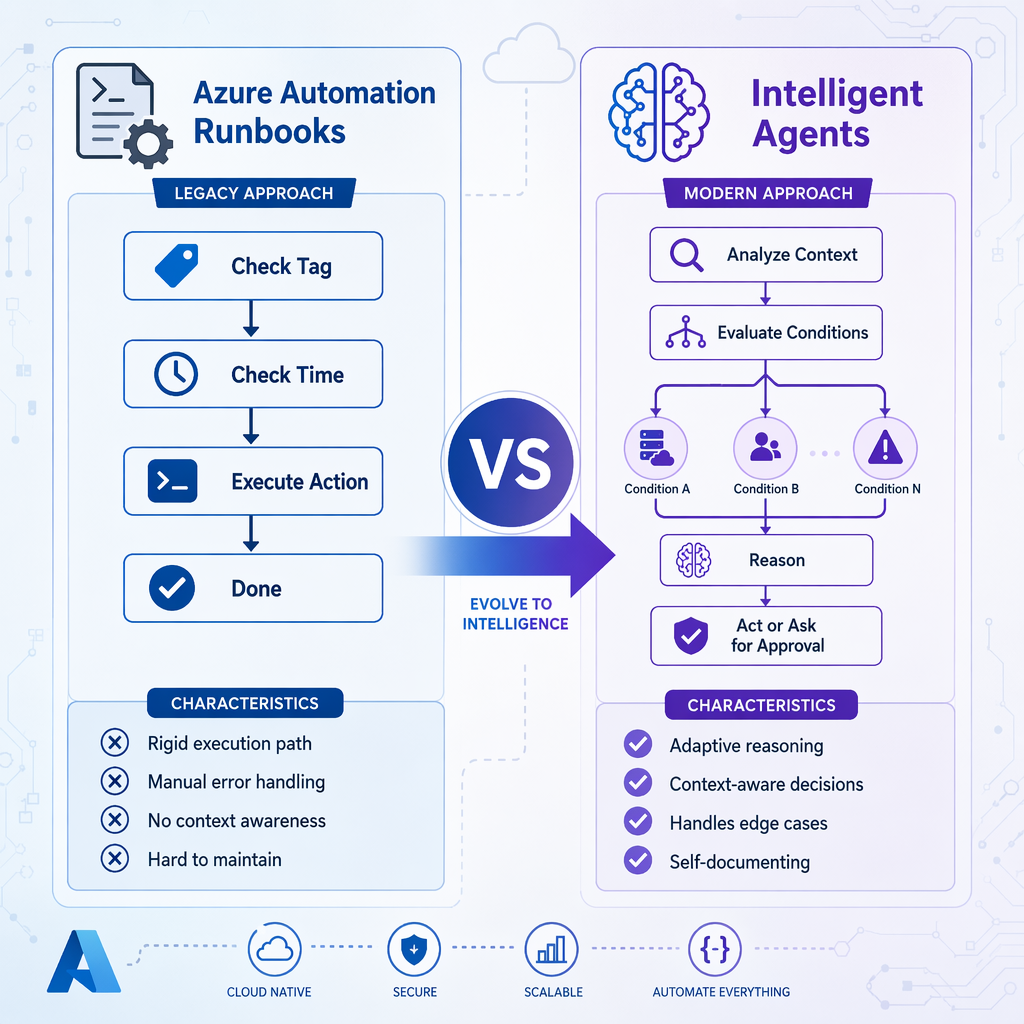
The Problem with Traditional Runbooks
Don’t get me wrong - Azure Automation runbooks served us well for years. But they have some fundamental limitations:
1. Rigid execution paths - if you didn’t anticipate a scenario in your script, the runbook fails. No reasoning, no adaptation, just a red X in the jobs history.
2. Poor error handling - sure, you can wrap everything in try-catch blocks, but then you end up with 200 lines of error handling for 50 lines of actual logic.
3. Hard to maintain - someone writes a runbook, it works, they leave the company, and now it’s tribal knowledge encoded in PowerShell comments (if you’re lucky).
4. No context awareness - runbooks execute commands. They don’t understand “why” or “what happened since last time” or “is now actually a good time to restart this VM?”
Agents fix all of these problems. An agent can reason about the current state, check if conditions are right, handle unexpected responses, and even ask for human approval when it’s unsure.
The Migration Strategy
I didn’t want to migrate all my runbooks at once (because that’s a recipe for a very bad weekend, and this weekend the sun is out here in Seattle). Instead, I picked the VM start/stop scheduler as a pilot - it’s common, relatively simple, and low-risk if something goes wrong.
Here’s the high-level approach:
- Document what the runbook actually does - turns out, half the logic was handling edge cases that no longer apply
- Identify decision points - where does the runbook make choices? Those become agent reasoning points
- Build the agent workflow - using Microsoft Foundry with Azure-specific tools
- Set up MCP servers for Azure operations - so the agent can query VM state, start/stop VMs, etc.
- Run in parallel for a week - let both the old runbook and new agent run side-by-side, compare results
- Cut over - disable the runbook, monitor the agent
Let me walk through each step with the actual implementation.
Step 1: Documenting the Existing Runbook
The original runbook was about 190 lines of PowerShell that did this:
- Get all VMs in the subscription with a specific tag (
AutoShutdown: true) - Check the current time and day of week
- If it’s between 7 PM and 7 AM on a weekday, stop the VM
- If it’s 7 AM on a weekday, start the VM
- Send an email if anything fails
Simple enough, right? But buried in there were also:
- Special handling for VMs in a specific resource group (demo VMs that should never auto-start)
- Logic to skip VMs that were already stopped (to avoid redundant operations)
- A check for active RDP sessions before stopping (nobody likes getting kicked off mid-work)
Here’s a simplified excerpt of the core logic:
| |
The full runbook is available in the sample code repository.
Edge cases I found while documenting:
- VMs modified in the last 2 hours (likely part of active deployment)
- VMs with
CriticalWorkload: truetag (should ask before stopping) - Network Watcher permission issues when checking active sessions
- VMs that failed to stop previously (retry or skip?)
Step 2: Identifying Agent Decision Points
This is where it gets interesting. Instead of hard-coded if-statements, the agent needs to reason through questions like:
- “Is this VM supposed to be running right now based on its tags and the current time?”
- “Are there any active user sessions that would be interrupted?”
- “Has this VM been recently created or modified (suggesting someone is actively working on it)?”
- “Is there a maintenance window scheduled that conflicts with the shutdown?”
These aren’t just boolean checks - they require context awareness and sometimes trade-offs. That’s exactly what agents are good at.
Decision points I mapped:
| Runbook Check | Agent Reasoning |
|---|---|
if ($IsBusinessHours) | “Is it currently business hours AND does this VM’s workload pattern suggest it should be running?” |
if ($CurrentPowerState -eq "running") | “Is the VM running, and if so, WHY is it running? (user started it manually vs. automated start)” |
if ($HasActiveSessions) | “Are there active sessions AND is the activity legitimate work or just an idle connection?” |
if ($ResourceGroup -eq "Development") | “Is this a dev environment where developers manage their own lifecycle?” |
| Hard-coded skip logic | “Are there contextual signals (recent modifications, tags, CPU activity) that suggest I should ask before acting?” |
The agent doesn’t just execute these checks - it reasons about them and can handle combinations I didn’t anticipate.
Step 3: Building the Agent Workflow
I used an MCP server architecture instead of a traditional Foundry agent (though you could use either - and I think MCP is just amazing…!!). The MCP server exposes tools for:
- Querying Azure Resource Manager for VM state and tags
- Checking VM metrics (CPU, network, disk) to infer if it’s idle
- Starting and stopping VMs
- Sending notifications (via email or Teams)
The agent’s core instruction prompt looks like this:
| |
The full instruction prompt is here - it’s about 200 lines and includes example scenarios, error handling guidance, and tone guidelines.
Step 4: Setting Up MCP Servers for Azure
The agent needs to talk to Azure, which means building an MCP server. I created an MCP server in TypeScript with these tools:
azure-vm-lifecycle - exposes tools for:
list_vms_by_tag- query VMs with specific tagsget_vm_status- current power state, size, resource groupget_vm_metrics- CPU, network, disk metrics for idle detectioncheck_active_sessions- query active RDP/SSH sessionsstart_vmandstop_vm- with confirmation promptssend_notification- email or Teams alerts
You could obviously expand those, depending on your current Azure Automation Account scenarios and complexities.
Here’s a snippet of the get_vm_metrics tool implementation:
| |
The full MCP server source (about 450 lines) is available on GitHub.
Configuration in VS Code (add to .vscode/mcp.json):
| |
Step 5: Running in Parallel
For a full week, I ran both the old runbook and the new agent on the same schedule. The runbook wrote logs to Azure Automation job history, the agent wrote logs to Application Insights.
Results after 7 days (42 scheduled runs):
| Metric | Runbook | Agent |
|---|---|---|
| Successful runs | 39 | 42 |
| Failures | 3 (tried to stop already-stopped VMs) | 0 |
| Human approval requests | 0 | 2 |
| False positives (VMs stopped incorrectly) | 3 | 0 |
| Average execution time | 2.5 minutes | 3.2 minutes |
The agent caught two critical cases where the runbook would have blindly stopped VMs with active sessions:
Case 1: Thursday 7:30 PM - dev-workstation-05 had an active RDP session (user working late). Runbook would have disconnected them. Agent detected the session, skipped the shutdown, and sent a notification.
Case 2: Monday 8:00 PM - api-server-staging-03 was modified 20 minutes ago (deployment in progress). Runbook would have stopped it mid-deployment. Agent detected recent changes, requested approval, human said “no”, deployment succeeded.
That alone justified the migration. Here’s the detailed comparison of test scenarios in the sample repository.
Step 6: Lessons Learned
What worked better than expected:
- The agent’s reasoning about “is this VM busy?” based on metrics was way more reliable than my hard-coded checks. It combined CPU, network activity, and recent modifications in ways I hadn’t explicitly programmed.
- Human-in-the-loop approval for edge cases (active sessions, recent modifications) feels way better than “stop it anyway and deal with the complaints”. Users actually appreciate being asked.
- The audit trail is significantly better. Instead of “Stopped VM X at 8:00 PM”, I get “Stopped VM X - idle (3% CPU avg over 15 min), no active sessions, outside business hours, auto-shutdown tag enabled”.
What was harder than expected:
- Getting Azure RBAC right for the MCP server’s managed identity. Needed
Virtual Machine ContributorplusReaderon the subscription, plusMonitoring Readerfor metrics. Took me three tries to get all the permissions right. - Rate limiting on Azure Resource Manager queries. When checking 50+ VMs, I hit throttling limits. Had to add caching for VM metadata (safe to cache for 5 minutes).
- Session detection is harder than it looks. The runbook’s Network Watcher approach didn’t work reliably (permissions issues). Ended up using Azure Bastion connection logs, but that only works if Bastion is configured.
Unexpected benefits:
- Cost visibility improved - the agent logs estimated savings per VM stop (“Stopped VM X, estimated savings: $0.23/hour”). Over a month, that adds up and makes the ROI visible.
- The agent taught me things about my infrastructure. It found VMs with
AutoShutdown: truethat were never actually used during business hours (candidates for deletion, not just auto-stop).
Still TODO:
- Migrate the backup validation runbook (more complex, involves Log Analytics queries)
- Add holiday calendar integration (don’t auto-start VMs on public holidays)
- Build a “runbook migration assistant” agent that auto-converts PowerShell to agent workflows (ambitious, I know, but I’m curious if it’s feasible)
Should You Migrate Your Runbooks?
Honestly? It depends.
If your runbooks are simple, stable, and don’t require human judgment - maybe leave them alone. But if you’re constantly tweaking edge cases, or if they fail unpredictably, or if nobody on your team understands them anymore… yeah, agents are probably a better fit.
If you’ve migrated (or are thinking about migrating) Azure Automation workflows to agents, I’d love to hear your approach. Ping me on LinkedIn or drop a comment.
Complete Sample Code
All the code from this post is available in my GitHub repository:
What’s included:
original-runbook.ps1- The legacy Azure Automation runbook (190 lines)agent-instructions.md- Full agent prompt with decision frameworkmcp-server/- TypeScript MCP server implementation (450 lines)test-scenarios/comparison.md- Detailed side-by-side comparison with 5 real scenariosREADME.md- Setup instructions, deployment guide, and troubleshooting
You can clone it, adapt it to your own runbooks, and try the migration yourself. I’d recommend starting with a low-risk runbook (like VM start/stop) before tackling more complex scenarios.

Cheers!!
/Peter